TechnicalExample preview
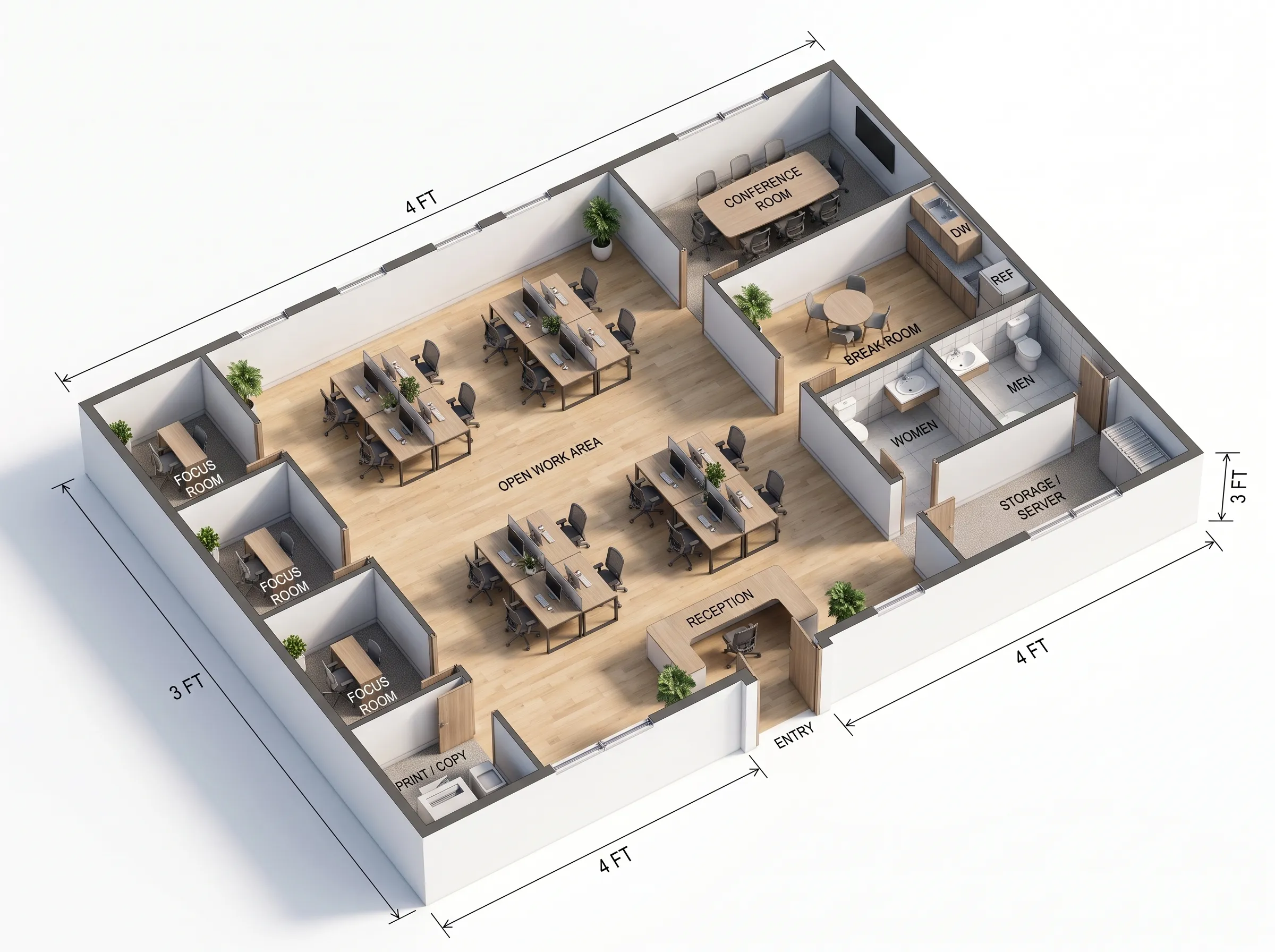
Illustrative example. Generate your own plan to download or continue editing.
- 2,500 ft²
- Open Plan Office
- 20 workstations
- 2 meeting rooms
- Reception
- Break area
Illustrative example. Generate your own plan to download or continue editing.
Set the office size, team capacity, rooms, and workspace priorities, then generate a practical 2D office floor plan. Start with the spaces that matter and refine the layout after you have a clear first plan.
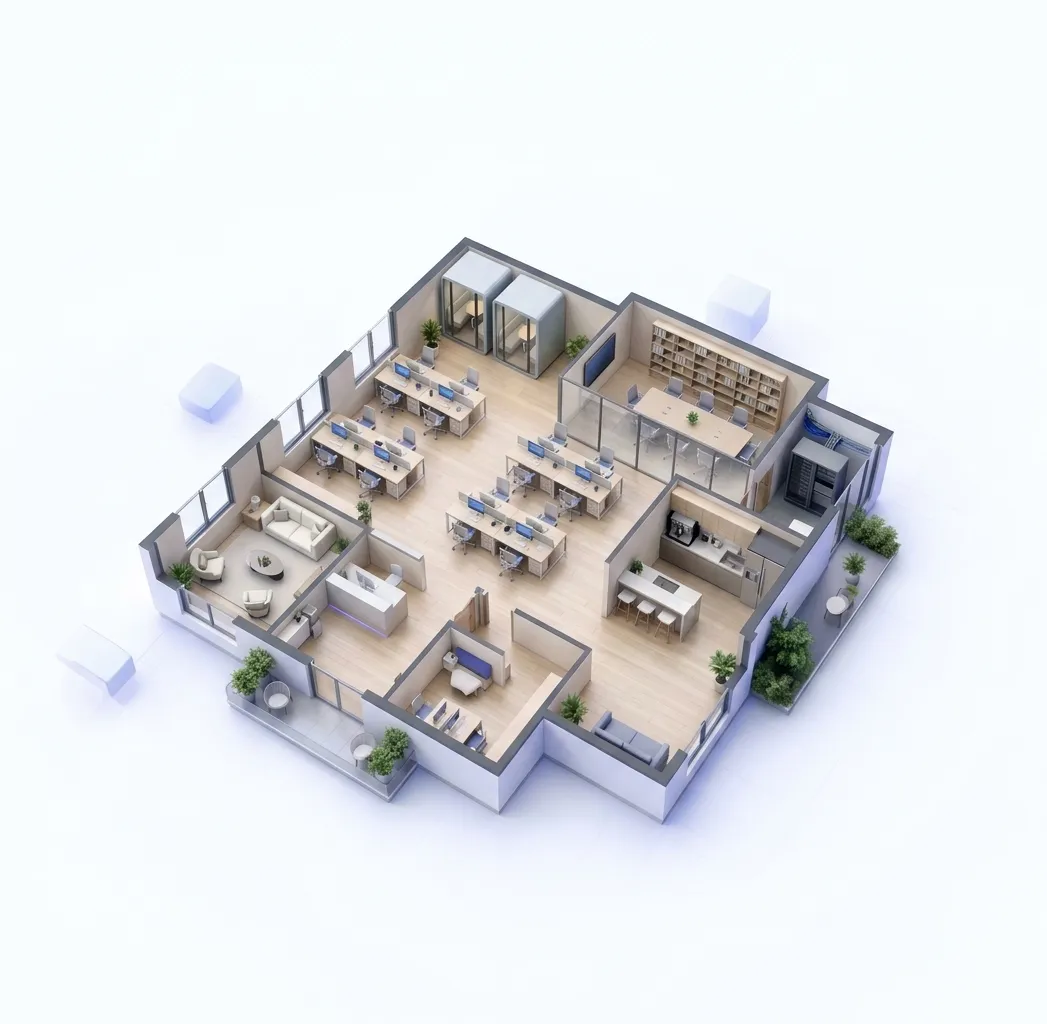
Start with the team and rooms your office needs, then use the first layout to guide detailed planning.
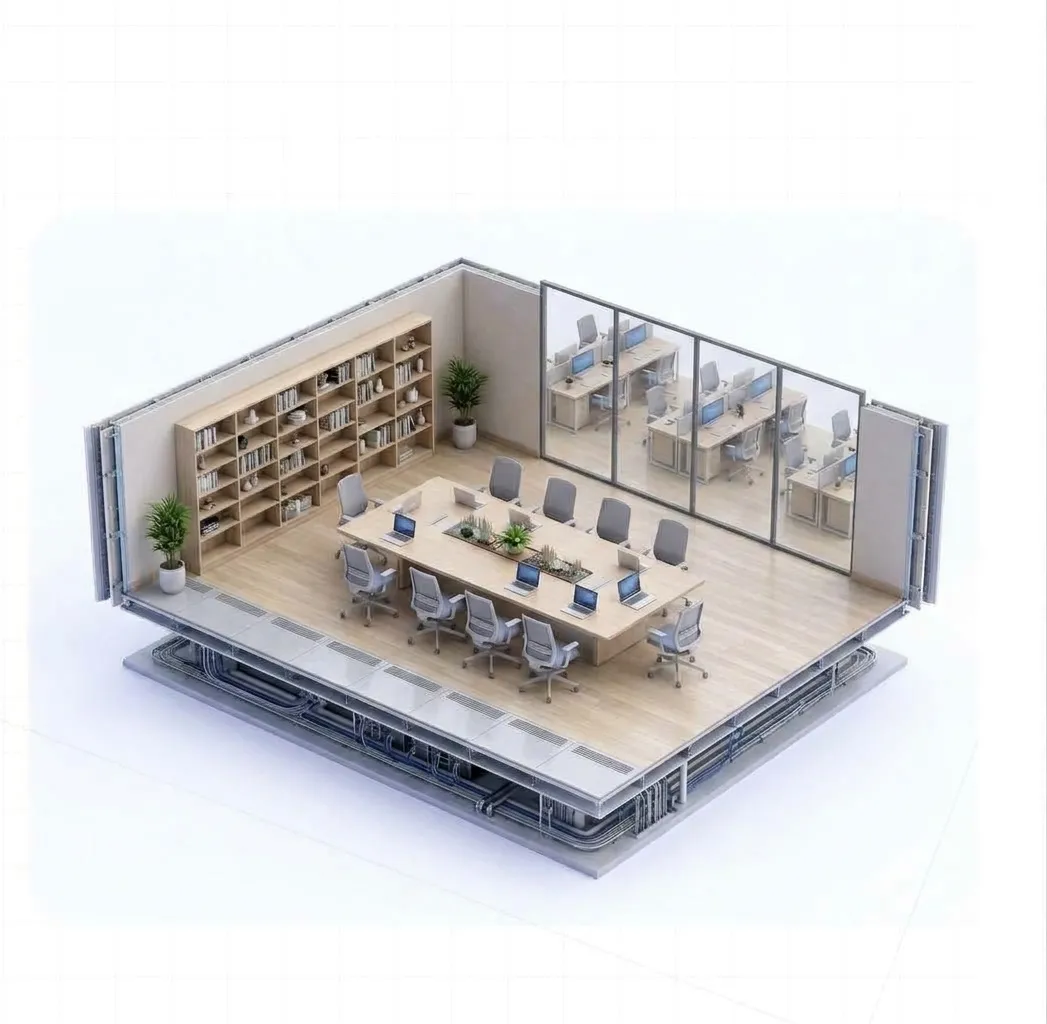
An office floor plan generator should begin with the practical limits of the space. Set the area, workstations, and meeting rooms before adding smaller requirements.
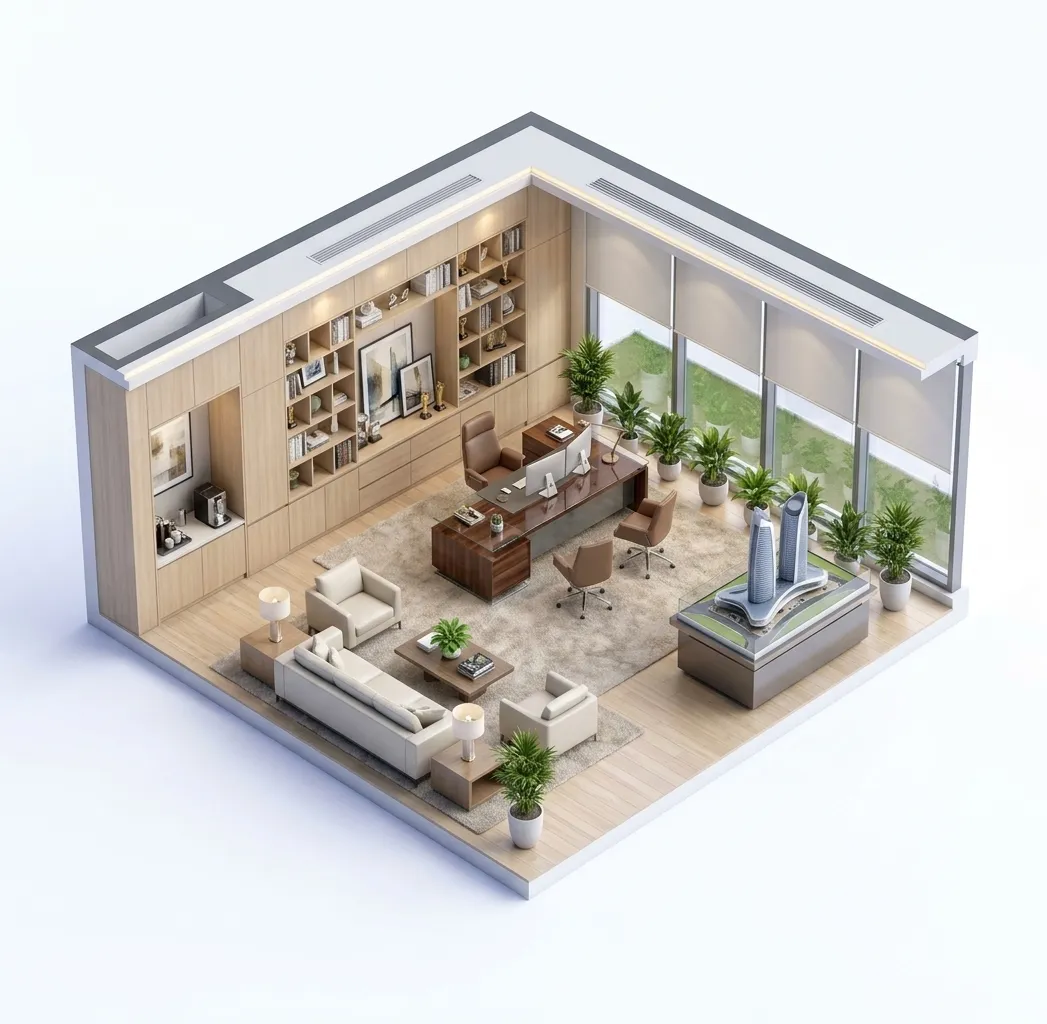
Choose from common office spaces such as reception, private offices, phone rooms, storage, and a break area. Keep the brief short so the generated office floor plan stays easy to review.
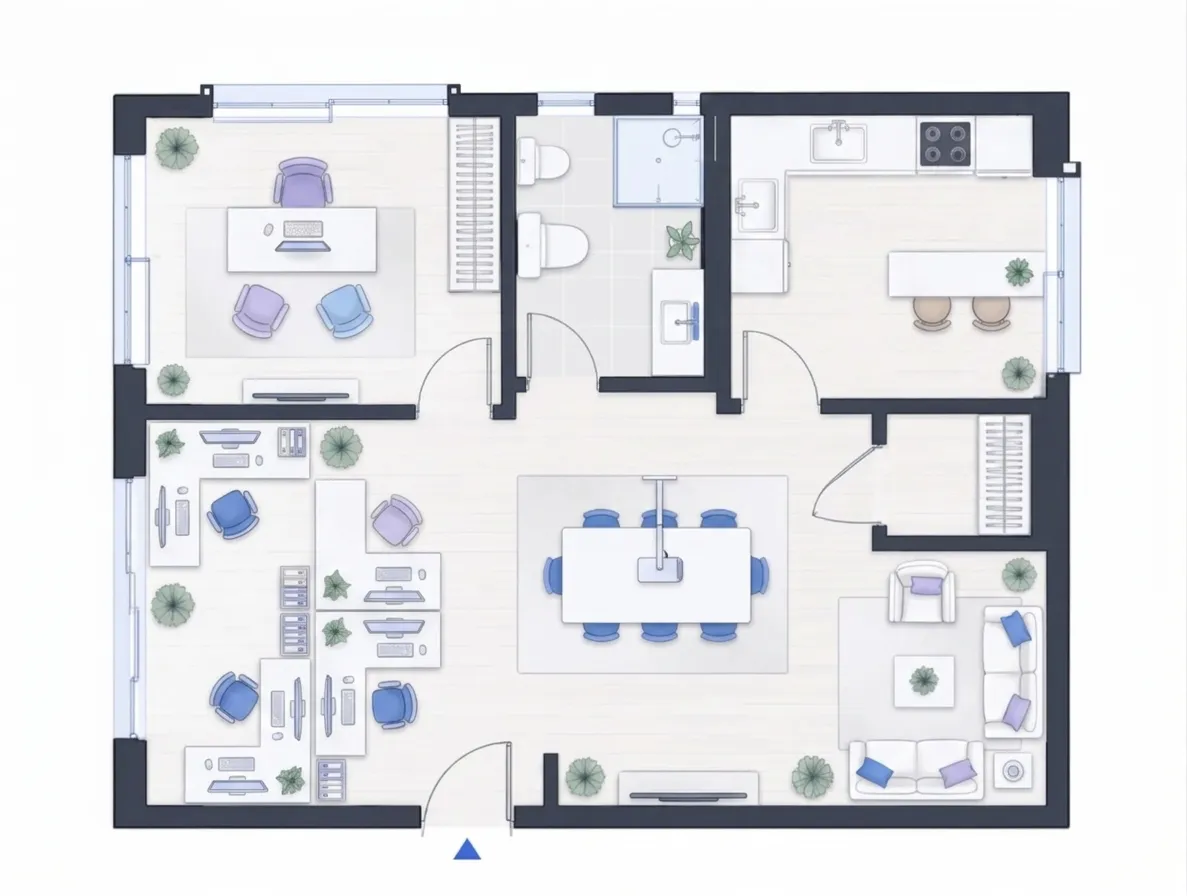
The first office floor plan should make circulation, room placement, and work areas easy to discuss. A clean top-down layout is a useful base for the next round of planning.
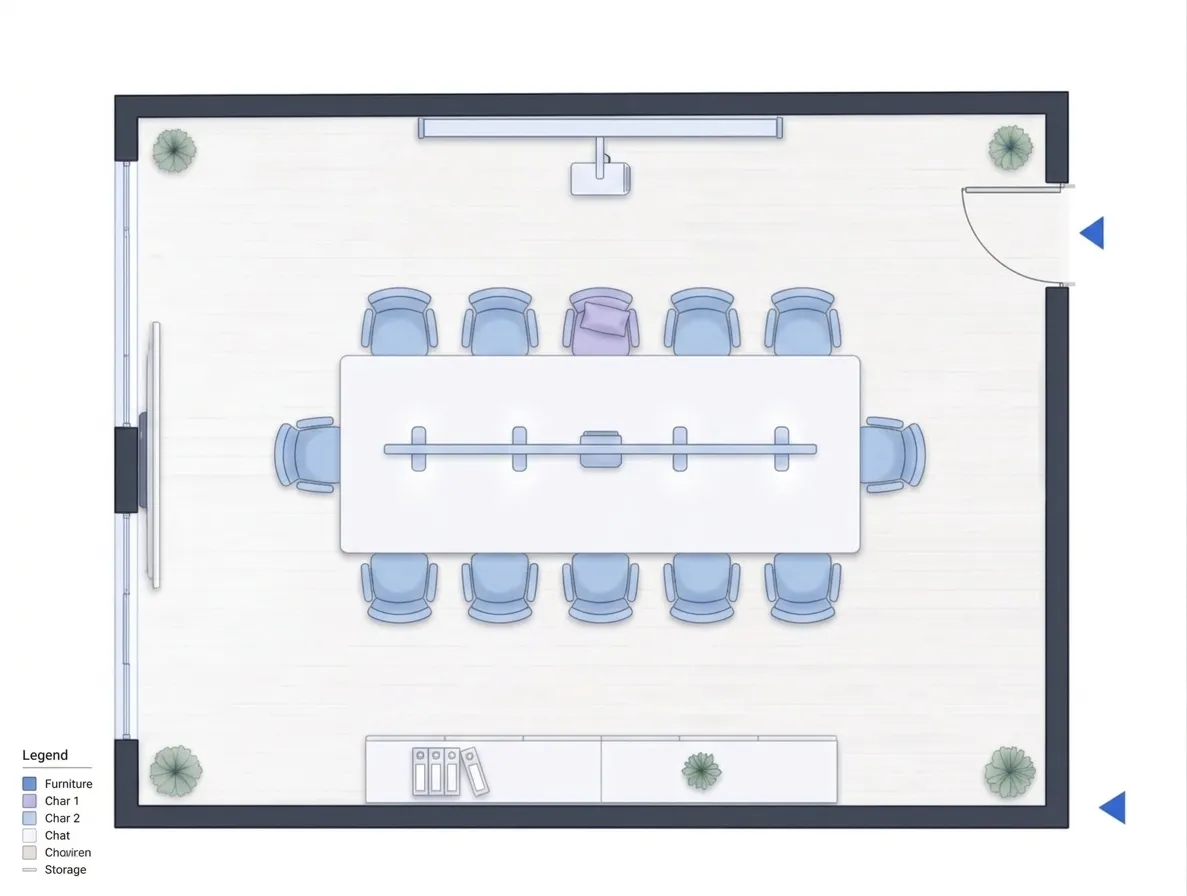
Office planning often changes as the team, room list, and furniture needs become clearer. Generate a first layout, review it, then continue with the Floor Plan Editor for focused changes.
Set the office size and team needs, choose the main spaces, and review the generated layout.
Add the area or outer dimensions, workstation count, and meeting rooms.
Select reception, private offices, phone rooms, storage, or a break area.
Review the office floor plan and continue to the editor for detailed changes.
Common office layouts for different team sizes and working styles.
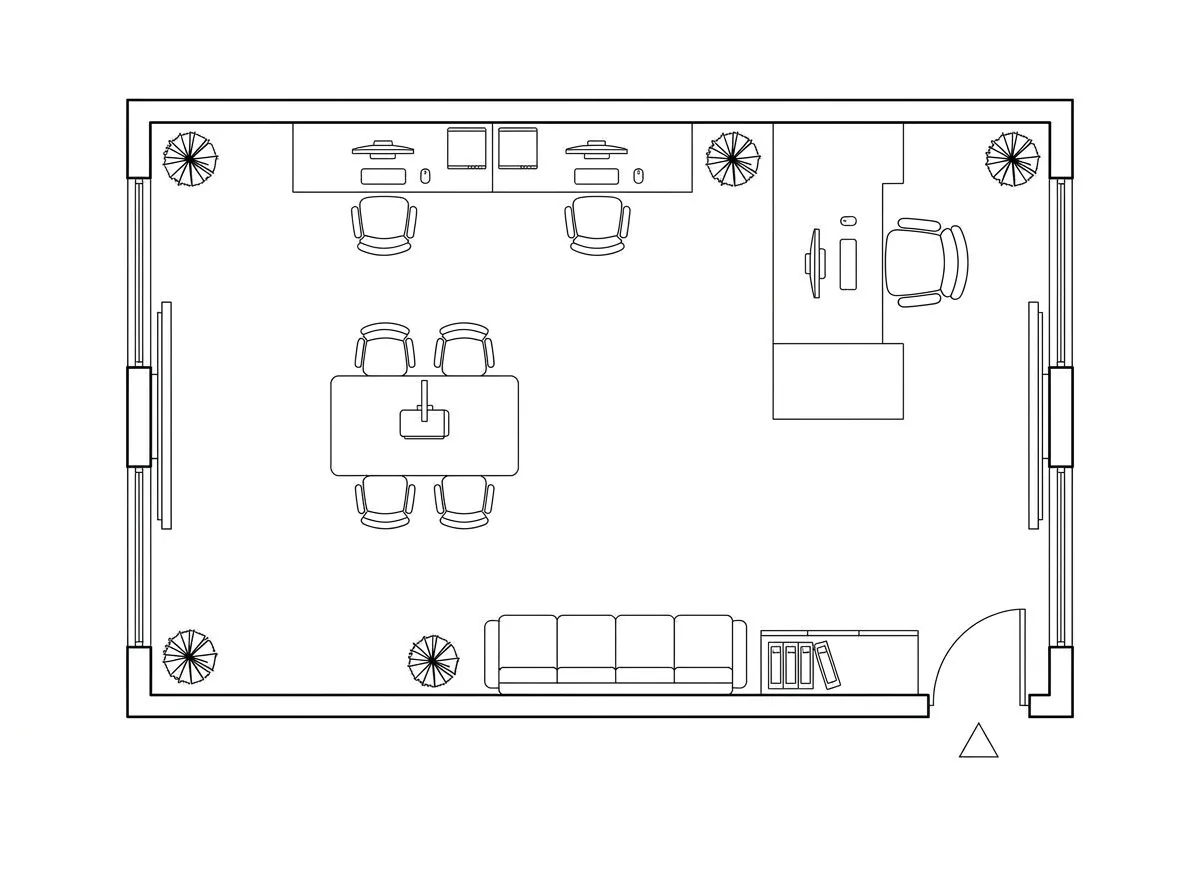
Compact desks and meeting space
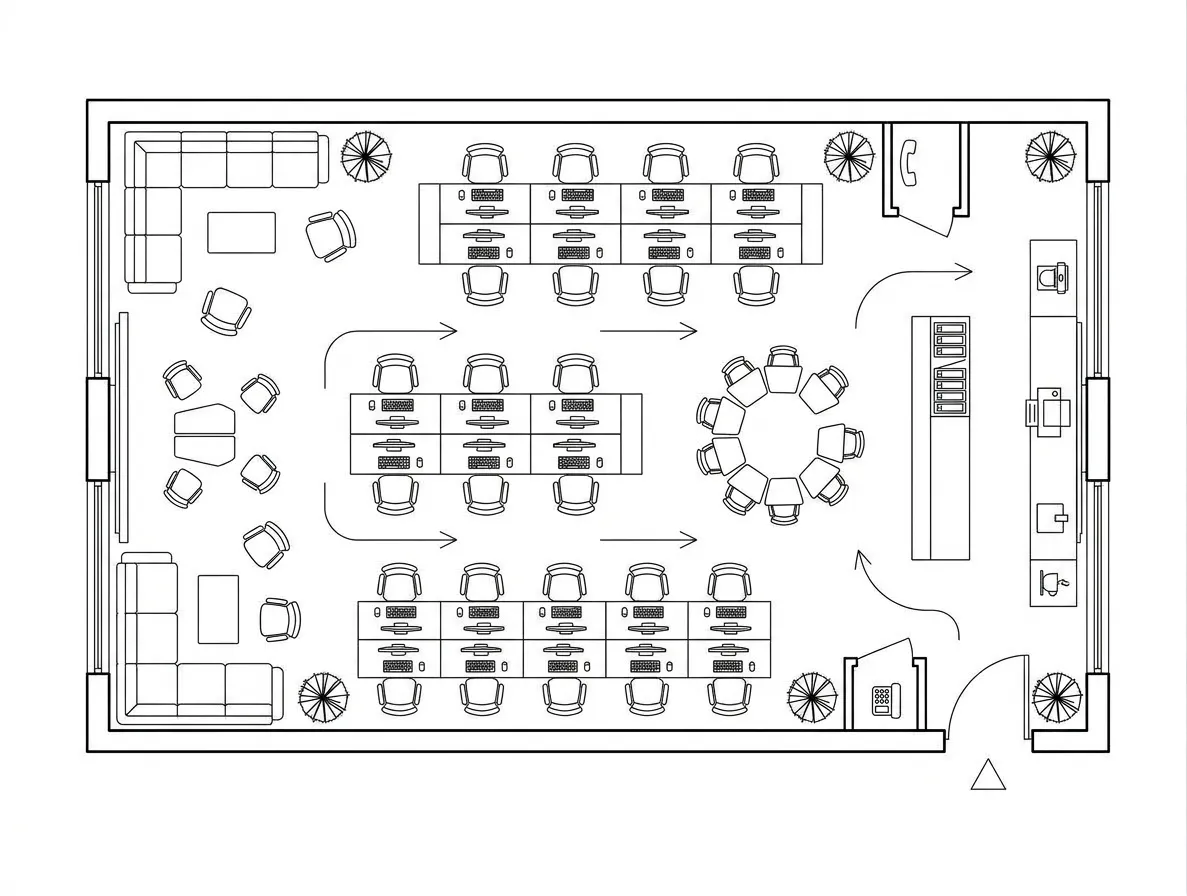
Shared workstations and circulation
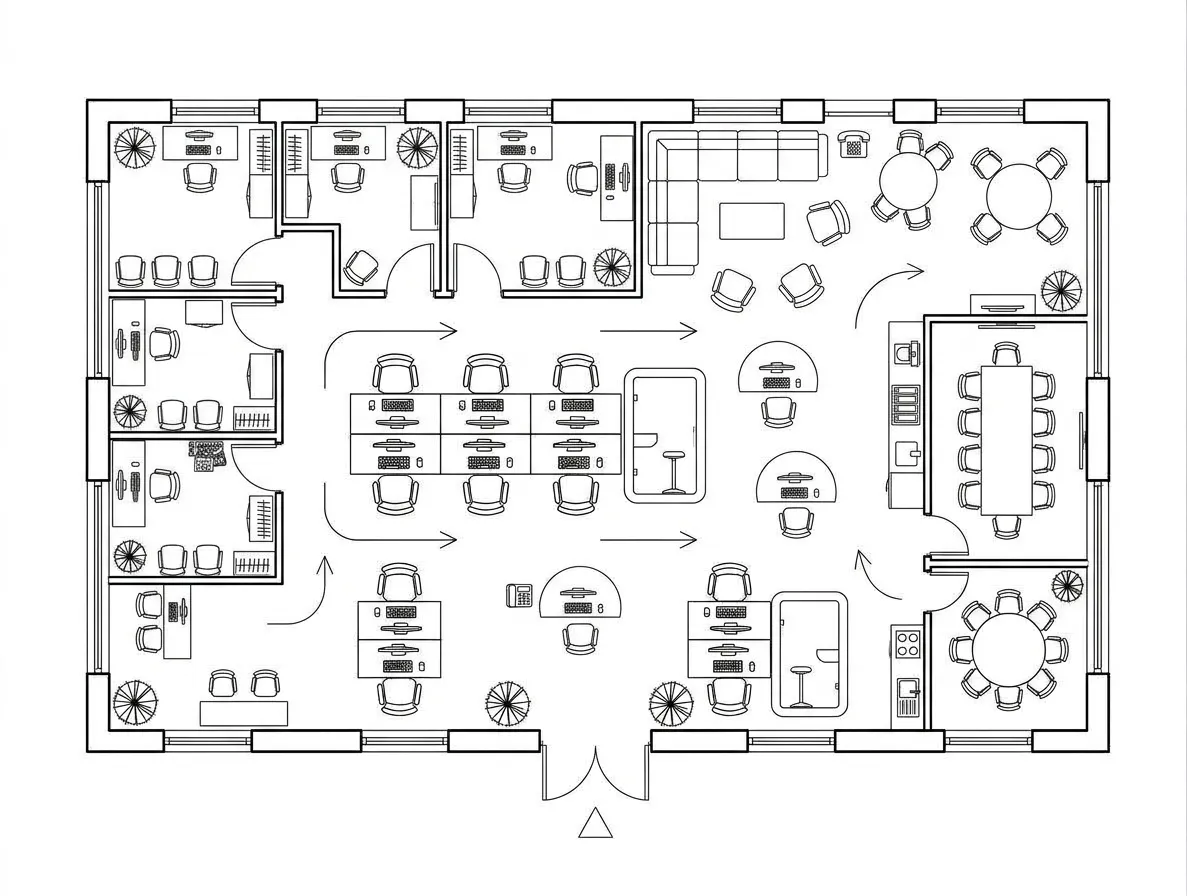
Open desks and private rooms
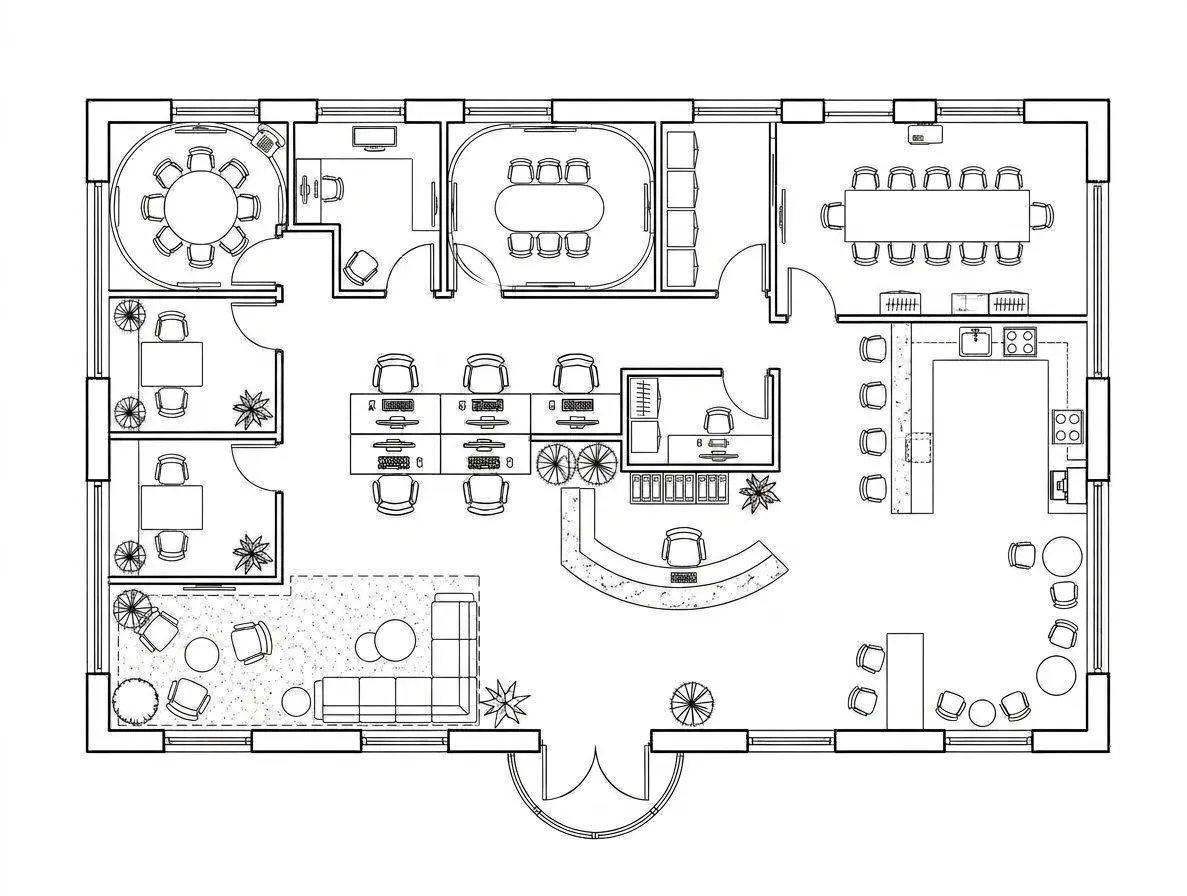
Reception and meeting areas
Use an early office layout to discuss capacity, rooms, and how people move through the space.
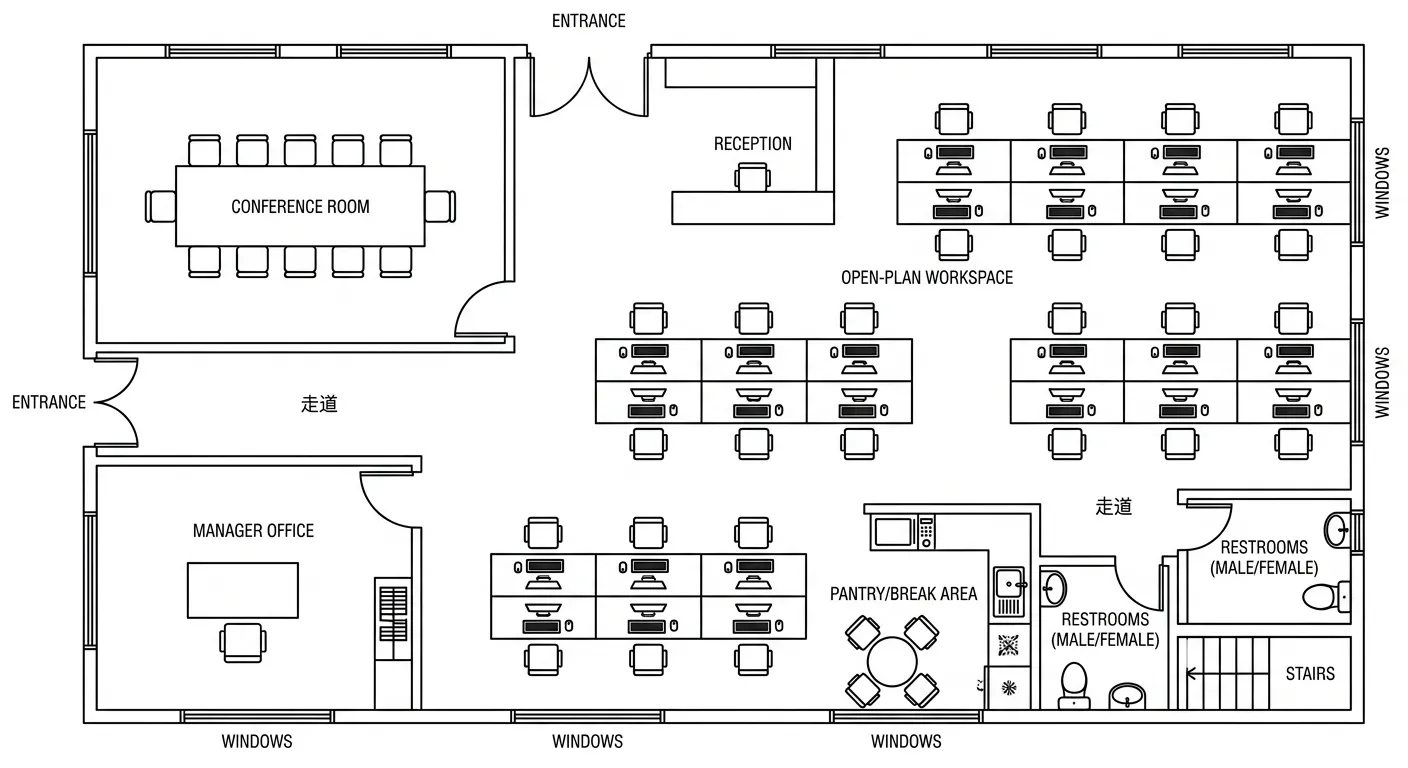
Explore a starting layout before committing to detailed design.

Test how an existing team could fit into a new space.
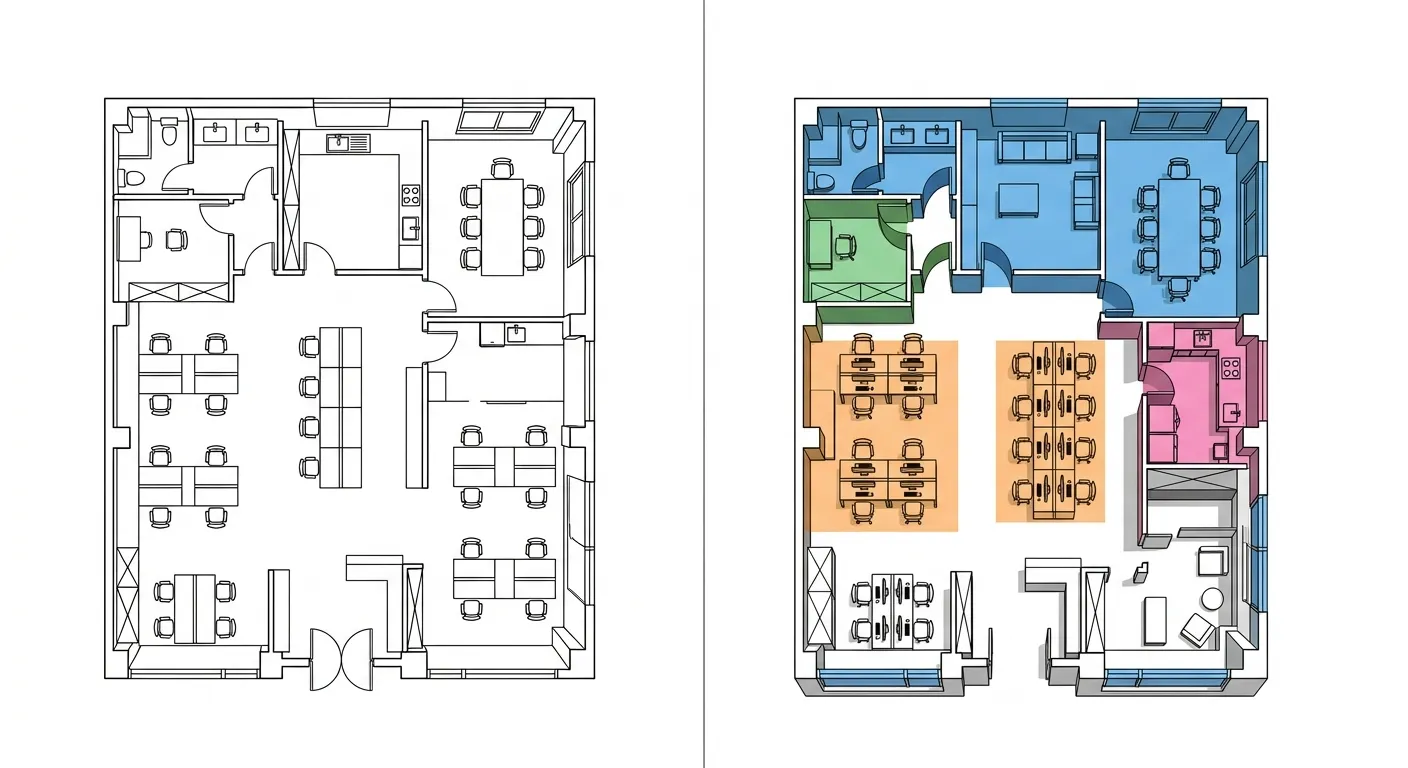
Review desk, meeting, and shared-area requirements.
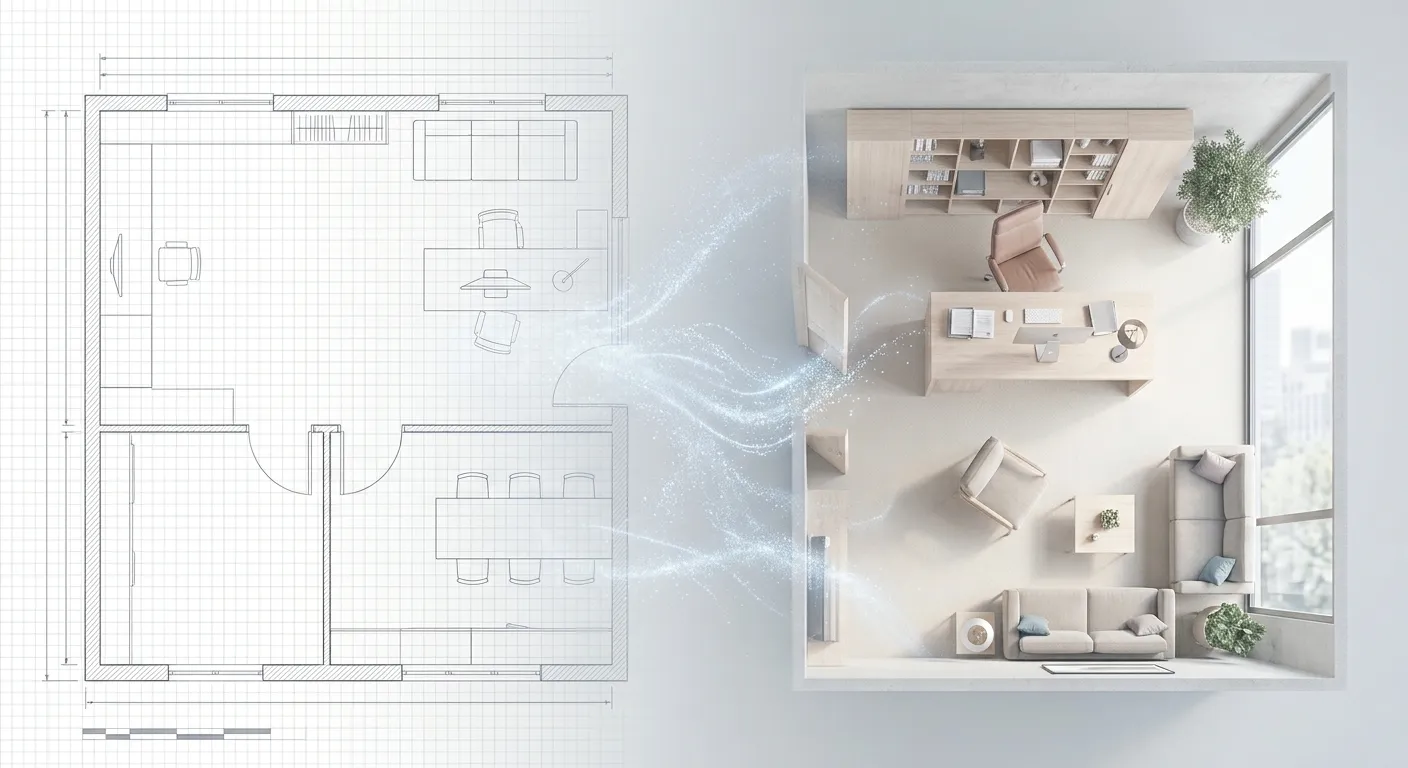
Create a visual layout to discuss with a team or designer.
The generator starts with capacity and key spaces, so the first office floor plan is easy to review before detailed furniture and design decisions.
Area, workstations, meeting rooms, and office layout define the basic brief.
Choose from reception, private offices, phone rooms, storage, and break areas.
Review the office from a simple top-down view.
Continue to the editor for detailed local changes.
For a general residential layout, use 2D Floor Plan. For a rough drawing, use Sketch to Floor Plan.
Common questions about office inputs, rooms, workstations, and the generated layout.
Set the workstation count, room needs, and office area to create a practical starting layout.